

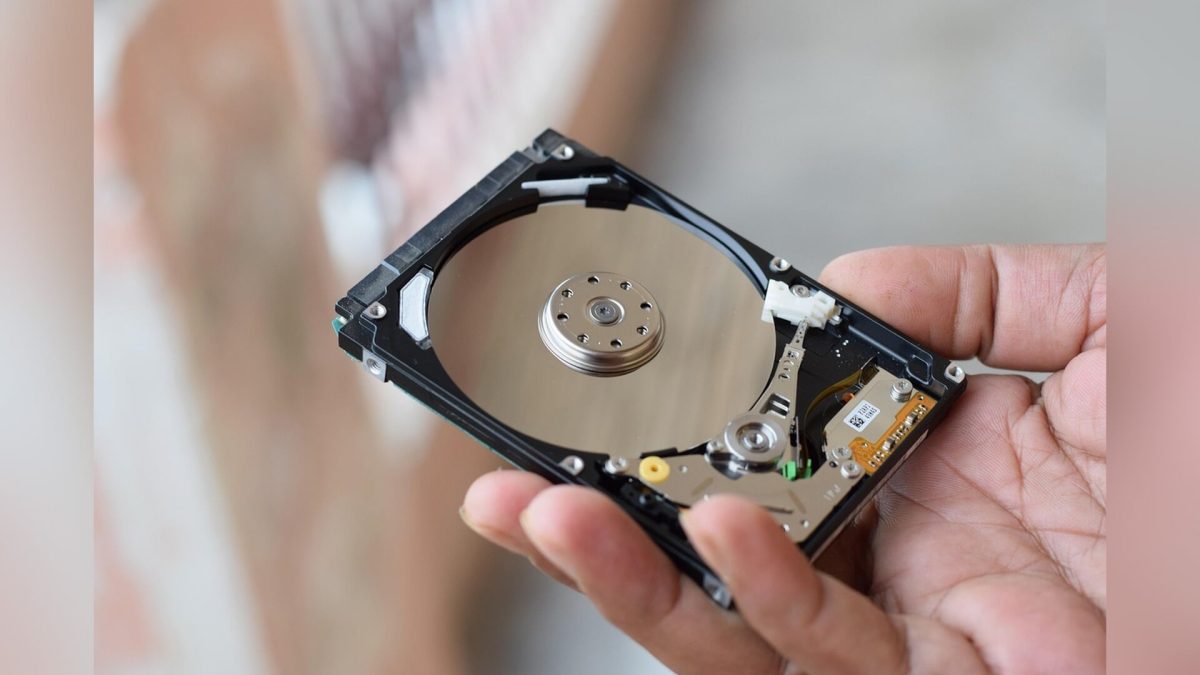
I remember sliding an old laptop drive into a drawer and feeling oddly proud of myself. In my head, I had done the responsible thing. The files were safe. The drive was out of harm’s way. I could get back to life and stop thinking about storage for a while.
Then one rainy afternoon, I went looking for a folder of family photos I wanted to share. I found three drives, two mystery cables and a little wave of panic. One drive had no label. Another was inside an enclosure that made a faint clicking sound. The third one did mount, but the folder names looked like the aftermath of a rushed move. That was the moment I realized a drawer can feel organized while hiding a lot of digital uncertainty.
The phrase “bit rot” gets used loosely and that is part of why it sticks. Most people use it to describe the slow decline of saved data over time. Sometimes the problem is damage inside a file. Sometimes it is aging hardware. Sometimes it is a drive interface you can barely connect anymore. Sometimes it is simple neglect. Whatever the cause, the result feels the same, your old files become harder to trust.
That idea clicked for me after reading a little NIST guidance about data integrity. The language is formal, but the lesson is very human. Stored files still need to be accurate, readable and available when you need them. A backup that lives in theory is very different from a backup you can actually open on a stressful day.
Since then, I have changed how I think about every old drive in my house. I still keep external storage around and I still believe in having extra copies. I just no longer confuse a forgotten device with a healthy archive. If you have a drawer full of drives, memory cards, or random USB sticks, there is a good chance you know this feeling already. You are sitting on a pile of memories, projects and paperwork that deserves a little more attention.
The Drawer Feels Safe
There was a time when I treated a drawer like a tiny vault. If a hard drive was tucked away from spills, pets and everyday clutter, I felt calm. I even had a system that looked smart from the outside, anti-static bags, a neat stack of old SSDs and a small box for cables. From a distance, it looked like I had my life together. Up close, it was a museum of postponed decisions.
The thing is, physical safety is only one part of long-term storage. A drive can sit undisturbed for years and still drift further from usefulness. You may forget what is on it. You may lose the power brick or the right enclosure. A file system can feel unfamiliar later. The hardware around the drive may age in ways you never see until the day you need it.
I learned that the hard way while hunting for old documents during a busy week. I had a drive that almost certainly contained them. “Almost certainly” turned out to be a terrible category. I spent more time guessing than recovering. By the end of that evening, I had opened the wrong folders, mixed up two similar drives and made myself wonder why I had trusted my memory more than a label maker.
That is why a drawer creates a false sense of closure. It gives you the emotional comfort of having saved something. It does very little to prove the files are still healthy. Consumer storage can fail quietly. Accessories vanish. File names age poorly. A backup earns its value when you can reach it quickly and understand what you are looking at.
If you want one easy improvement, start with clear labels. Put the contents and rough purpose on each drive. “Photos and videos” beats “black USB drive.” “Old laptop clone” beats “misc backup.” I started doing this after one especially annoying weekend and it changed everything. You spend less time decoding your own habits and more time protecting the files that matter.
Bit Rot Usually Shows Up Late
I admit this part caught me off guard. I expected storage problems to announce themselves with dramatic failure. Smoke, strange noises, or a drive that never appears on screen. Real life is messier. The first warning can be a photo that loads halfway, a video that stutters near the end, or a document that opens with missing pieces. Those little glitches feel random at first, which is why they are easy to wave away.
That delayed arrival is what makes bit rot so unsettling. You do not stare at an archive every day. You trust it from a distance. Weeks turn into months. Months turn into years. Then one evening you open a folder for a very specific reason and the trouble shows up exactly when the files matter most.
I remember clicking through an old photo archive and seeing a few thumbnails that looked normal until I opened them. One image had a stripe of digital noise across the middle. Another exported fine years ago, yet suddenly refused to cooperate. It felt surreal because the files had been sitting still the whole time. In my mind, stillness meant safety. In reality, stillness meant I had no idea what shape they were in.
From a practical point of view, the symptoms are often simple. Files open slowly. Some never open. A folder takes forever to scan. A music file skips. A backup app says a copy completed, but you never actually tested anything inside it. You do not need a lab to notice the warning signs. You only need a few minutes and the patience to open real files instead of trusting a green check mark.
Sometimes the problem comes from the file itself. Sometimes it comes from the drive, the enclosure, or the cable. Software changes can add another layer of friction. Old project files may depend on an app you no longer have. Legacy photo libraries can behave strangely after years of platform changes. A healthy archive lives at the intersection of working hardware, readable formats and habits that keep both current.
That is why I now sample old storage before I count on it. I open photos, videos, PDFs and a few boring documents on purpose. I copy a handful of them to a modern machine and check that they still behave normally. It is a small ritual, but it gives me a much better sense of data integrity than a drive sitting quietly in a dark drawer ever could.
Old Drives Age Out Faster Than You Think
Years ago, I found an external drive that held a pile of old creative work. I was excited for about thirty seconds. Then I looked at the port. It needed a cable I had not seen in ages. The enclosure had one of those chunky shapes that belongs to a very specific era of desk setups. I spent the next hour digging through boxes and wondering why my past self never put the right cable in the same bag.
Storage ages in more than one way. There is the media itself, which can wear down or become unreliable. Then there is the ecosystem around it. Ports change. Adapters disappear. Older enclosures feel flimsy after years in storage. Even if the drive inside is fine, the path to your files can become awkward enough that you keep putting it off. Delay is where a lot of archives start to slide into trouble.
I have seen the same thing with flash drives and memory cards. They seem tiny and durable, so they often get tossed into cases or forgotten inside old gear bags. Later, you find one and feel hopeful. Then you realize you no longer have the laptop with the right slot, or you forgot which camera created those folders. Small storage media can hold irreplaceable files, but they often live the messiest lives.
The educational part here is simple. A file archive depends on three moving parts, the storage device, the connection to your current computer and the software that can still read what you saved. If any one of those starts to drift out of your regular routine, your archive becomes less approachable. Once it feels inconvenient, it is easier to avoid. Once you avoid it, you stop noticing its weak spots.
My rule now is to migrate older archives before they feel old enough to become a project. If I have a drive that needs a special dock, a rare cable, or a lot of patience, I move the important contents to current storage while I still can. That habit has saved me more than once. It also spares future me from opening a drawer and inheriting a puzzle from a stranger who happened to use my name.
A Backup Counts Only If You Check It
I will be honest, I trusted backup software too easily for a long time. If I saw a progress bar finish, I felt done. If I copied a folder to an external drive, I gave myself credit and moved on. That approach worked right up until I actually needed a file and discovered the copy was incomplete. Few tech experiences are more humbling than learning your confidence outran your verification.
A reliable backup has a few qualities you can understand without any technical deep dive. It exists in more than one place. It opens on the device you have now. The files inside are the ones you expect. This is why a quick test matters so much. Restoring a sample folder tells you more than a dozen good intentions.
One evening, I started a small habit that changed how I handle storage. Whenever I back up important files, I reopen a handful right away. I check a photo album. I scrub through a video. I open a spreadsheet that has enough detail to reveal corruption quickly. It takes a few extra minutes and it gives me a far stronger sense of backup confidence.
There are also gentle ways to automate some of this. Many backup tools can compare files after copying and some operating systems make it easy to sync important folders across devices. You do not need an elaborate home lab. You need a repeatable routine. The goal is to build trust through regular checks, not through wishful thinking.
A friend once told me they had “backed up everything” before replacing a computer. The phrase sounded solid. Later, a few key folders turned out to be missing because they had been stored in an app-specific library that never got copied over. That story stuck with me because it highlights a common trap. People often protect what they can see first, while hidden app folders and old project bundles quietly stay behind.
These days, I think of verification as part of the backup itself. The copy is step one. The open-and-check moment is step two. Both matter. If you only have time for a quick pass, focus on your most valuable files, family photos, personal videos, scanned records, creative projects and anything that would hurt to lose twice, once in the past and again in the present.
My Simple Storage Routine Now
It took me a long time to settle on a routine that felt realistic. Grand plans always collapsed. I did not need a perfect system. I needed one I would actually keep. So I built a setup around a few ordinary habits and I stopped pretending I would someday enjoy a six-hour storage marathon.
My current approach is boring in the best way. Important files live on the computer I use every day. A second copy goes to an external drive I can connect without hunting for parts. My most precious folders also exist somewhere else I can reach easily if the first two copies go sideways. That could be another local device or a cloud service for the things you care about most. The point is easy recovery.
I also make a short pass through older storage a few times a year. I plug in one drive, open a handful of folders and decide what still deserves a place in my active archive. Some files are sentimental. Some are practical. Some are just clutter wearing the disguise of future usefulness. Giving each drive a little attention keeps the whole pile from turning into an archaeological dig.
Another habit has helped more than I expected, I rename folders and drives in plain language. “Phone photos vacation” is better than “DCIM copy.” “Tax PDFs and home records” is better than “docs old.” Search works better. Future cleanups go faster. Most of all, it reduces the friction between you and your own file organization.
But boy, was I wrong to think storage was a one-time task. It behaves more like maintenance around the edges of your digital life. A little attention now prevents a much bigger headache later. If you have a drawer full of drives, start with one. Plug it in. See what is there. Save what still matters to a place you trust today. That small step turns passive clutter into a living archive and it gives your digital memories a much better future.