

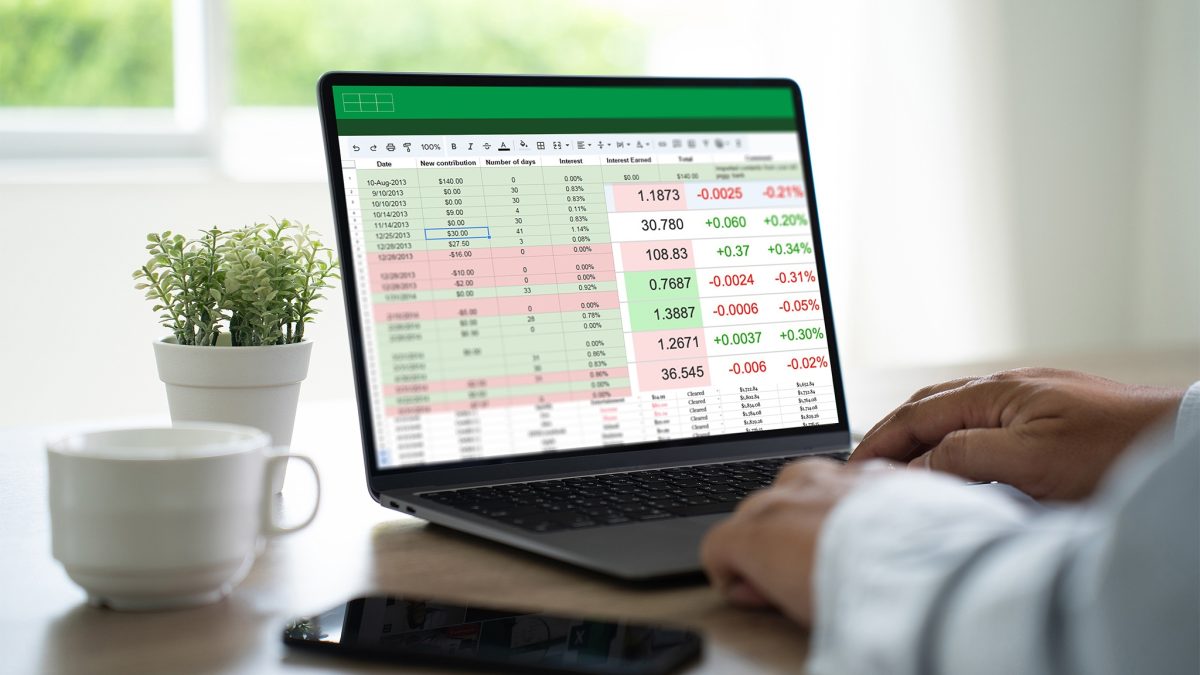
Quick note: Microsoft’s FreezePanes documentation explains that the setting belongs to a window and it can interact with split panes.
I remember one rainy afternoon when I was cleaning up a budget sheet that had somehow become a scrapbook of my life. There were grocery totals, streaming bills, a list of things I promised myself I would cancel and a few mystery charges I had clearly meant to investigate. My first move was automatic. I froze the top row, felt briefly organized and kept scrolling. Ten minutes later, I was still hunting for the same information.
That pattern showed up everywhere. It happened in trip planners, in moving checklists and in those long gift lists I build when I want to feel ahead of the season. I kept reaching for one familiar tool, even when the sheet needed a different kind of help. The strange part is that Excel gives you plenty of other options. You just have to stop treating Freeze Panes like the first answer to every problem.
There was a time when I loved any feature that made a spreadsheet feel more stable. A locked header row gave me a sense of control. You know the feeling. The file still looks huge, but at least one piece of it holds still while the rest slides around. That comfort matters, especially when you are staring at a sheet with dozens of columns and your eyes start bouncing from cell to cell.
Still, comfort and usefulness are not always the same thing. Once I paid attention to how I actually work, I noticed something simple. Sometimes I need structure. Sometimes I need focus. Sometimes I need to compare two distant parts of a sheet without losing my place. Those are different jobs and they deserve different tools.
So I changed my routine. I still use Freeze Panes now and then and I am glad it exists. These days, though, I lean on Excel tables, filtering, split view, extra windows and a few visibility tricks that make giant sheets feel calmer. If your spreadsheets keep getting wider, longer and more annoying, these are the tools that finally made mine easier to live with.
1. Tables Keep My Messy Lists Under Control
I admit that tables felt too formal when I first started using them. My lists were casual. One was a running sheet of home supplies. Another tracked books, chargers, spare cables and random gadgets that migrate around the house. I figured a table was for serious office work. Then I converted one messy range and immediately saw why people stick with them.
A table gives your data a clear shape. Headers stay meaningful. Rows belong together. New entries slide into the same structure without that awkward moment when formulas and formatting start drifting apart. If you spend time in Excel every week, that consistency saves real mental energy. You stop babysitting the sheet.
The thing is, a lot of spreadsheet stress comes from loose formatting. A normal grid lets you get away with almost anything. That freedom sounds nice until column styles change halfway down the page and totals stop including the newest rows. Structured tables reduce that friction. They make your sheet feel deliberate, even when the content is still evolving.
I noticed the change most clearly with a shopping tracker. Before, I had a long list with colored headers and frozen panes. It looked fine from the top. Lower down, it felt like wandering into a cluttered garage. Once the list became a table, sorting and scanning became easier. Even the visual rhythm improved because every row felt part of the same system.
For everyday users, this is the quiet power of tables. You get filter buttons, cleaner formulas and a layout that grows with you. You also get a better foundation for almost every other tool in this article. Messy lists stop being wandering cell ranges and start acting like proper datasets. That shift made more difference for me than a pinned header ever did.
2. Sort And Filter Do More For Me Than A Pinned Header
Years ago, I had a subscription sheet that looked responsible from a distance and embarrassing up close. It had billing dates, prices, renewal notes and a column where I kept typing things like “check later” or “do I still use this?” I would freeze the top row and scroll through the whole thing every month. The process felt productive, though it was mostly just motion.
Then I started filtering the sheet instead. One click showed annual plans. Another showed anything renewing this month. Suddenly I was making decisions instead of scanning rows with tired eyes. That was the moment sort and filter became one of my favorite Excel habits.
Sorting changes the order of your data so patterns jump out faster. Filtering narrows the view so you can focus on one slice at a time. These are simple ideas, but they solve a bigger problem than Freeze Panes does. They reduce what you need to look at right now. A smaller set of information is often the fastest route to clarity.
Sometimes I use this for a packing list before a trip. I sort by category so chargers, toiletries and documents stop living in random corners of the sheet. Other times I filter a project list to show only “waiting” tasks or only items assigned to one person. The file feels lighter in seconds and my brain follows right along.
Here is the practical advice I wish I had followed sooner. When a spreadsheet feels huge, ask yourself whether the real issue is navigation or volume. If the answer is volume, filtering is usually the better move. Header rows help you remember where you are. Filters help you decide what matters.
And there is a nice side effect. Once you trust filtering, you stop building giant visual workarounds into the sheet. You rely less on bold colors, less on frozen rows and less on manually hiding random lines one by one. Your workflow gets calmer and the spreadsheet starts serving your task instead of demanding your attention.
3. Split View Is Better When I Need Two Parts Of One Sheet At Once
I remember wrestling with a yearly budget where the summary lived near the top and the ugly details lived far below. One section had category totals. Another had every grocery run, pharmacy stop and impulse online purchase that I was trying very hard to call “essential.” I kept scrolling up, then down, then up again. By the end, I knew the wheel on my mouse better than I knew my own numbers.
Split view changed that routine for me. Instead of pinning one area and dragging the rest of the sheet around it, I could keep two working zones in sight. One part of the window held the summary. The other showed the active rows I was editing. That arrangement feels more natural when your eyes need to compare distant sections.
From a technical point of view, this is about visibility. Freeze Panes is great when one header row or one column needs to stay in place. Split view helps when your task involves comparison. If you are matching names to totals, checking formulas against source data, or reviewing one month against another, split view keeps both reference points nearby.
For me, this shines during cleanup work. I often keep a top section visible while I fix categories lower down. If a total looks strange, I can check the summary and the raw rows without interrupting my train of thought. That matters more than people realize. Every extra scroll breaks concentration a little.
Microsoft’s documentation also reflects this relationship. It describes FreezePanes as a property of the window and it notes that freeze and split states can interact. In daily use, that window-focused design makes sense. You are shaping what you see so Excel matches the task in front of you.
4. Multiple Windows Make Big Sheets Feel Smaller
I’ll be honest, opening the same workbook in two windows sounded excessive the first time I tried it. It felt like something a finance team on three monitors would do. Then I used it during a long planning session and understood the appeal in about thirty seconds. The sheet stopped feeling like a tunnel.
Excel lets you open another view of the same workbook, which means each window can sit on a different part of the file. This is useful when one section acts like a dashboard and another holds the raw material. You can edit in one place and keep context in the other. It is a simple idea and it makes large files feel more manageable.
My favorite use for this is budget work. One window stays near category totals. The other sits deep in the transaction list where I am renaming entries or fixing tags. When I change a row, I can watch the bigger picture respond right away. That immediate feedback helps you catch mistakes earlier and trust the sheet more.
Then there are template-heavy files. I keep one side on the polished section and the other on the part that needs repetitive input. If I am filling a tracker for the month, I can follow the layout in one window and enter details in the other. Multiple windows give me a feeling of orientation that one tall sheet rarely does.
You do not need a giant desk for this either. On a laptop, I often snap two narrower windows side by side. The columns get tighter, but the workflow still improves because my eyes travel less. On a bigger display, the effect is even better. The workbook starts acting more like a workspace and less like a scroll challenge.
There is also a subtle emotional benefit here. Huge spreadsheets can feel oppressive. They make small tasks seem bigger than they are. Two windows break that mood. You divide one intimidating sheet into two understandable views and suddenly the whole job feels more possible. Big sheets become easier to approach when you can see them from more than one angle.
5. Grouping And Hiding Help Me See The Important Parts Faster
It took me a long time to realize that some spreadsheets feel exhausting simply because they show too much at once. I had a trip-planning sheet that tracked bookings, times, backup ideas, packing notes, maps, reservation codes and a running list of things I wanted to eat. Everything was technically useful. Everything was also shouting at me from the screen.
Grouping and hiding gave that file some breathing room. When you collapse a section or hide a set of columns, you create a calmer view for the task you are doing right now. Maybe today you only need departure times and confirmation numbers. Tomorrow you might care about budget categories and notes. Excel works better when the visible sheet matches your current goal.
Sometimes I use this on content plans. A draft sheet might include titles, owners, rough ideas, due dates, supporting links, status notes and a few columns meant for later. During planning, I hide the columns that belong to later stages. The result is cleaner and far easier to scan. Grouping rows works the same way for long outlines or multi-step project trackers.
There is a practical reason this helps so much. Your eyes search faster when the screen carries less clutter. You make fewer placement errors. You are less likely to type in the wrong column. In a wide worksheet, every hidden distraction improves focus a little and those small gains add up.
For me, this tool is especially helpful when I share spreadsheets with family or friends. A crowded worksheet can make people nervous, even when the data itself is simple. A trimmed view feels friendlier. Hidden columns and grouped sections let you present only what someone needs in that moment, which keeps the file approachable and keeps everyone moving.
6. Freeze Panes Still Has A Place, Just A Smaller One
There are still moments when I click Freeze Panes and feel glad it is there. That usually happens when I open a spreadsheet built by someone else. Maybe it has thirty columns, tiny text and a naming system that made perfect sense to its creator. In those first few minutes, keeping the top row visible can save a lot of confusion.
Freeze Panes is also handy when a single label column matters through the whole task. If I am reviewing a list of names, products, or categories that extend far to the right, anchoring that first column helps me keep the context attached to each row. Frozen panes still earn their place in quick review work.
What changed for me is the role I give it. It is a fast orientation tool. It is a comfort feature when I need one steady reference area. It shines in that lane. I simply stopped expecting it to solve structure problems, comparison problems and visibility problems all by itself.
That shift made Excel feel more thoughtful. Tables help me build cleaner sheets from the start. Filters help me cut through noise. Split view helps with comparison. Extra windows help on big projects. Grouping and hiding help me lower the visual volume. Better tools emerged once I matched each feature to a specific kind of work.
If you have been freezing panes out of habit, try a small experiment the next time a sheet starts fighting you. Turn the range into a table. Filter to one category. Split the window. Open a second view. Hide what you do not need yet. You may still come back to Freeze Panes and that is perfectly fine. I do too. I just reach for it with more intention now and that has made my spreadsheets feel a lot more human.